How to Use Generative AI Safely: Gemini Edition

Here’s how to safely use Gemini for work and personal use. Since everyone worries about risks like information being retained by generative AI or shared with others, I’ll cover both corporate and personal scenarios.

A.How to Safely Use A.Gemini Within Your Organization

1.Google Workspace mit Gemini

This is offered as an additional feature of Google Workspace designed for businesses.

  • Features:
    • Google Workspace Integration: Gemini features are available within each Google Workspace application, including Gmail, Docs, Sheets, Slides, and Google Meet.
    • Security and Privacy:
      • No Learning of Input Content: User-provided prompts and company data are guaranteed not to be used as training data for improving Gemini models.
      • DLP (Data Loss Prevention) Integration: Higher editions also provide features that automatically identify and protect sensitive information.
    • Licensing Models:
      • Gemini Business: Includes usage limits (1,000 requests per user per month).
      • Gemini Enterprise: Offers unlimited usage with additional advanced security features and capabilities like real-time translation in Google Meet.

This model is suitable for companies seeking to safely utilize Gemini in daily operations to enhance employee productivity.

2. Google Cloud Vertex AI

This platform is geared more toward developers and data scientists, enabling them to build AI applications for enterprises.

  • Features:
    • Customization and Control: You can fine-tune various models, including Gemini, using your company’s data or integrate them into your own applications.
    • Ensuring Data Sovereignty: By utilizing company-owned data within Google Cloud’s secure environment, you can minimize the risk of data leakage.
    • Pay-as-you-go Pricing: The primary pricing model is pay-as-you-go, based on the number of tokens (text units) used and model usage.
    • API Integration: The main method of use involves accessing Gemini models via API and integrating them into your own systems or applications.

This model is suitable for companies that want to integrate Gemini into their own services or products, or for companies that want to develop and operate their own AI models.


Summary

  • Google Workspace with Gemini is ideal for safely using Gemini within your existing Google Workspace environment, primarily aimed at boosting employee productivity.
  • Google Cloud Vertex AI is suitable for developing your own AI applications or when you require more advanced security and control.

Neither contract type involves Gemini’s model learning the company information you input, enabling private use within your organization. It’s best to select the optimal service based on your intended use and company size.

B.How to use it privately and safely

To ensure Gemini does not learn from any private information you enter, turning off Activity Management is the most reliable and straightforward method. This prevents your chat history and input from being saved to your account and used as data to improve Gemini’s models.


How to Turn Off Activity Management

The procedure for changing activity

  1. Access the Gemini website: Open the Gemini homepage in your browser.
  2. Navigate to the Activity Management page: Click the menu icon (three horizontal lines) in the top-left corner and select “Activity.”
  3. Turn off Gemini Activity: Click the toggle switch next to the “Gemini Activity” option to turn it off.
  4. Confirm and complete settings: A confirmation message about the setting change will appear. Select “Turn Off” to complete the process.

Changing this setting will prevent future chat history from being saved.


Other Notes and Tips

  • Temporary Use: We strongly recommend turning off Activity Management when handling particularly sensitive information, such as company confidential data.
  • Deleting Past History: Even when Activity Management is turned off, previously saved history remains. To completely delete past history, you must manually delete it from the Activity Management page.
  • Deletion per Session: Even with Activity Management enabled, you can delete history after each chat session. However, doing this every time is cumbersome. If you frequently handle confidential information, it is safer to keep Activity Management disabled from the start.

By implementing these methods, you can safely use Gemini while keeping your company information secure. For your own information protection, please be sure to utilize these settings.

Posted in AI | Tagged , , | Leave a comment

How to Use Generative AI Safely: ChatGPT Edition

Since methods differ between personal and corporate use, we will describe them separately. The usage also accommodates considerations such as corporate compliance and information leakage.

A. Use of ChatGPT Enterprise or Teams Plan for Business

Create an internal-only knowledge base

With ChatGPT Enterprise, you can upload internal knowledge (documents, FAQs, manuals, etc.) so employees can ask ChatGPT questions.
This knowledge is not shared externally and is only accessible to users within the same corporate account.

  • Examples:
    • Upload product specifications and development guidelines so employees can ask questions in natural language
    • Compile internal workflows and procedure manuals for use in new employee training and support
    • Centralize common customer service FAQs to streamline customer support

Data Security

  • Data is managed separately within enterprise tenants
    On Enterprise/Team plans, exchanged data is completely isolated from other OpenAI users.
  • Not used for model training
    Conversations and uploaded files are not used to retrain models.
  • SOC 2, GDPR compliant
    Data protection meeting compliance requirements is implemented, making it suitable for enterprise use.

Management Functions

  • Administrator Console
    Enables user management, permission settings, and SSO (single sign-on) integration.
  • Access Control
    Allows creation of dedicated knowledge bases accessible only to specific departments.

Team Collaboration

  • Shared Conversations
    Share conversation threads with internal members to continue asking questions to the same AI assistant.
  • Project-Specific Workspaces
    Organize knowledge and history per project, accessible only to relevant stakeholders.

In summary, using a corporate account allows you to create an “internal-only knowledge base + secure AI chat environment.” You can leverage AI across your entire organization without worrying about information leaking outside the company.

B. Uses not recorded for personal purposes

For personal use, it seems best to either use methods that leave no history or utilize temporary chats. Temporary chats, in particular, are only available for that moment, making them quite useful.

1.Turn off conversation history

ChatGPT has a setting called “Conversation History and Training.” Turning this off prevents conversation content from being saved to your account history and prevents it from being used to improve the model.

  • How to Set Up
    1. Click the ⚙️ “Settings” icon in the bottom-left corner of the ChatGPT screen
    2. Select “Data Management”
    3. Turn off “Conversation History and Training”

In this state, past interactions are not retained and cannot be referenced upon revisiting.


2.Utilizing Temporary Chat

OpenAI offers a “temporary chat” feature.
This is a session that leaves absolutely no history and cannot be restored after closing.

To use temporary chat, click the dotted circle in the upper right when opening a new chat. When the checkmark appears, it becomes a temporary chat.

  • Function Features:
    • No history is saved at all
    • You can use the same features as regular chat
    • When you close the session, the conversation disappears

3.Local Environment Tweaks

  • Use Incognito Mode
    When you don’t want to leave browsing history or cookies in your browser, use Chrome’s “Incognito Mode” or Safari/Firefox’s “Private Browsing” feature.
  • Avoid Leaving Screenshots or Logs
    If automatic recording features (like screenshot syncing or history backups) are enabled on your PC or browser, disable them as needed.

4.Regular History Deletion

Even if you had the setting enabled to keep a history, you can delete it later.

  • Delete unnecessary chats from Doba’s “History”
    • You can also delete them all at once via “Settings → Data Management → Delete All Conversations”履歴削除の手順

Summary

個人アカウントで安全に使いたいなら、

  • Turn off conversation history
  • Use temporary chat
  • Do not include confidential information / Use anonymized data

By keeping these three points in mind, you can use it with peace of mind without leaving a record.

Finally

Let’s safely and meaningfully use the compelling generative AI whose capabilities improve day by day.

Posted in AI | Tagged , | Leave a comment

I tried making a figure with Gemini nano-banana. Includes a comparison with ChatGPT.

Lately, I’ve been seeing a lot of articles about people using nano-banana to make figures of real people, anime characters, and game characters. Riding the trend, I tried making figures of Seaside cloudworks characters too. But Gemini is really excellent.

Let’s get started on creating the figure.

I’d like to try using Ayase and Kamiya. First, Ayase. Since nano-banana became available on Gemini today, I’ll run it on Gemini. I created it by reviewing only a small part of the prompt I found online, keeping most of it as-is. The creation speed is remarkably fast.

The texture is so lifelike, it’s like the original image has been transformed into a 3D object—truly astonishing. You’d swear it’s the real thing, but this is actually a generated image, right?

Next is Kamiya. I tried this with an image of Kamiya sitting in a chair. It’s possible to add poses or chairs for more creativity. First, I had ChatGPT generate an image of someone sitting in a chair, then used Gemini to generate the result shown below.

This chair might seem a bit too luxurious for the office, but it suits Kamiya-san perfectly. You could totally see a figure like this.

I think the sense of presence is truly remarkable, as if you’re actually there in that place.

ChatGPT seems to be heading in a slightly different direction when it comes to realism.

I had ChatGPT do the same thing using the same prompt based on Ayase’s image.

ChatGPT can do something similar too. The result was that the woman on the package looked good, but Ayase as a figure looked a bit older—or rather, it felt really realistic, like this is what she’d actually look like if she were a real person.

Based on my expectations this time, I thought Gemini was closer. Give it a try!

Posted in AI | Tagged , , | Leave a comment

Let’s create a picture book with Gemini Storybook.

Gemini has added a new feature called Storybook. It seems to be in beta testing, but trying it out reveals a pretty exciting result. I’ll introduce it along with a link to the actual picture book I created.

How to Make a Storybook

It’s very easy to create. Simply select a menu and provide the theme, target age group, content, and other details in the prompt.

  • Open Gemini
  • Select “Storybook” from the front or left sidebar.
  • Enter your prompt
  • Done

I made a picture book!

Here is the result after entering the following prompt. I made some adjustments after it was generated, but there are inconsistencies in the images between pages. However, each page features wonderful artwork, and the story was automatically generated as well. Since I included “lightsaber” in the prompt, some parts resemble Jedi Knights.

Prompt

The theme teaches the importance of daily training, targeting elementary school children and younger. In Japanese manga style, the protagonist is a raccoon-like beast-child who undergoes various daily drills to hone his swordsmanship. Upon reaching adulthood, his master bestows upon him a khaki-colored robe and a lightsaber, marking his journey as a fully-fledged swordsman.

Picture Book: “Ren and the Sword of Light”

The completed picture book is available for viewing here. Please take a look if you’d like.

https://g.co/gemini/share/da7904754f15

Posted in AI | Tagged , , | Leave a comment

Generate images with Gemini 2.5 Flash Image(nano-banana)! A simple guide using Google AI Studio

Introduction: What is Gemini 2.5 Flash Image?

The latest AI model, Gemini 2.5 Flash Image, is characterized by processing speeds as fast as “flash,” as its name suggests. Particularly in image generation, it can quickly produce highly accurate images even in response to complex prompts. This article explains the steps to utilize Google AI Studio, where you can use this powerful model for free.

Using Gemini 2.5 Flash Image in Google AI Studio

Step 1: Generate an image in Google AI Studio

First, access the official Google AI Studio website. After logging in, select “Try Nano Banana.” In the “Prompt” input field, describe the details of the image you want to generate. Input in Japanese is also possible. If you have an image to use as a reference for generation, attach that as well.

After entering your prompt, click the “Run” button in the top-right corner. Gemini 2.5 Flash Image will generate the image. If you like the generated image, you can download and save it.

I actually tried it! Two experiment reports

This time, to evaluate Gemini 2.5 Flash image generation capabilities, we conducted experiments using two prompts. A key point is how faithfully it can reproduce the original image. Previously, we tried generating images multiple times, often involving up to two people, just to see if we could finally get the desired image.

Experiment 1: How many people can be recognized and generated? (8 people)

Purpose: Faithfully recreating multiple people is difficult—how about eight? I tried generating an image resembling a group photo using the following eight people.

Generated Images and Analysis:

The two on the right are fairly good, but moving to the left, they seem to drift further and further from the original image. The clothing somehow seems to be preserved. It might be difficult to clearly recognize all eight people.

Experiment 2: What about three people? (Image at the beginning)

Purpose: I tried generating an image showing Ayase, Honda, and Kamiya watching fireworks, with all three wearing yukata.

Generated Images and Analysis:

This is an amazing result. While everyone ended up with the same hairstyle, I think it turned out quite well. Considering how completely different people used to appear before, getting this result on the first try is incredible. And it’s free, too.

Summary: Enhance Your Blog with Gemini 2.5 Flash Image

With Gemini 2.5 Flash Image, anyone can easily generate high-quality images. Please use this article as a reference to create your own original images.

Posted in AI | Tagged , , | 1 Comment

Episode 2: DX Begins with Small Steps — Taking Stock of Daily Work

In the previous discussion, the team made up their minds: Let’s move forward with DX (Digital Transformation) using cutting-edge technologies like Generative AI!
But as Shiraishi closed his laptop, he quietly muttered:

Shiraishi: “So… where exactly do we start with DX?”

The room fell silent. Moriyama folded his newspaper, while Kamiya twirled a pen in her planner.

Kamiya: “Jumping straight into new systems or AI tools might be risky.”
Moriyama: “Shouldn’t we first take a closer look at the work we already do every day?”

That one comment changed the atmosphere.
Everyone began picturing it: the endless emails, meetings, document preparation, customer interactions…
Each task on its own seemed ordinary. But together, they consumed a tremendous amount of time.

Ayase: “Then let’s list out all the tasks we actually do in our daily routine.”
Honda: “I see… so that’s the very first step toward DX!”

Squella nodded eagerly.

On the whiteboard, the very first words were written:
“Taking Stock of Daily Work.”


The black marker ran across the board as the meeting continued.

Shiraishi: “Email handling definitely takes the most time. Just checking, replying, and managing attachments every single day eats up hours.”

The word “Email” was written in large letters. Underneath, Ayase added bullet points:

  • Checking inbox
  • Writing replies
  • Organizing attachments

Ayase: “Each task feels small, but combined, they really add up.”

Next, Moriyama raised his hand.

Moriyama: “Meetings too. Regulars, client discussions, internal reviews… sometimes we talk about the same topics in different meetings.”

“Meetings” was written, followed by:

  • Regular meetings
  • Client discussions
  • Internal reviews

Kamiya: “And don’t forget document creation — proposals, presentations, reports…”

“Document Preparation” was added, with sub-items:

  • Proposals
  • Presentation materials
  • Reports

Holding Squella in his arms, Honda smiled and added:

Honda: “Customer support is important too — phone calls, chat, on-site visits…”
Squella: “I can help with chat!”

Everyone laughed, lightening the mood.
Soon, the board was filled with tasks:

  1. Email handling
  2. Meetings
  3. Document preparation
  4. Customer support
  5. Phone calls
  6. Internal coordination

Looking at the list, the team realized something important:
Their daily work was far heavier and more repetitive than they had imagined.

Shiraishi: “Now it’s clear. DX doesn’t have to start big — it begins right here, with improving our everyday work.

As they gazed at the board, a spark of hope began to shine in their eyes.

Posted in Story | Tagged , | Leave a comment

ChatGPT-5 Improvements, especially in image generation

August 7, 2005 ChatGPT-5 was released. Previously, it was necessary to use different models such as 4o and o3 depending on the application, but now they have been integrated into a single model. The official website states, “This is our highest-performance model, integrating inference and chat into a single system.” Please see the official announcement below.

Introducing GPT-5
https://openai.com/ja-JP/index/introducing-gpt-5

At Seaside Cloadworks, we use ChatGPT for simple tasks such as throwing out prompts for planning and image generation and getting responses, but we rely on it heavily for image generation in particular. Therefore, we asked ChatGPT-5 how image generation has evolved since it became ChatGPT-5.

What has improved in image generation with ChatGPT-5?

Since there was no explanation in the official document mentioned above, I asked ChatGPT-5 itself. The following is the answer.
It says “I” as if it were the person’s own answer, so I believe it to be true.


ChatGPT-5 (me) has the following improvements in image generation compared to previous models (GPT-4 series).

1.More natural integration of recognition and generation

  • Previously, “image reading models” and “image generation models” were separate, and it was sometimes necessary to switch between them during interactions.
  • With ChatGPT-5, image understanding (analysis) and image generation (drawing) interactions have become seamless, and the process of loading an image → understanding its content → processing it if necessary → generating a new image has become smooth in a single interaction.

2. Improving the accuracy of instruction comprehension

  • Even complex compositions and detailed style specifications (e.g., “A cat playing the piano in a wooden café bathed in the light of dusk, painted in an oil painting style”) can now be easily reproduced as intended.
  • The composition’s spatial relationships and atmosphere, which tended to be vague in the past, are now reproduced more faithfully.

3. Enhanced high resolution and detail rendering

  • The resolution and detail of the output image have been improved, and the expressiveness of small objects and background textures has been enhanced.
  • This makes it possible to create images that are less blurry even when enlarged.

4. Flexible editing functions

  • Partial editing (inpainting/outpainting) such as “replacing part of the image,” “changing only the color tone,” and “removing only the background” is now possible with more natural synthesis.
  • It is now possible to modify existing images without destroying their atmosphere.

5. Consistency and reproducibility of style

  • I am skilled at reproducing the same atmosphere and characters across multiple images with the same characters and compositions.
  • This makes it easier to create series works and comic-style continuous cuts.

My impression after trying it out a little

Until now, I provided the original image and gave prompts in Japanese (perhaps the prompts themselves were vague), but the resulting images sometimes looked strange (the shape of the hands) or just didn’t feel right. In some cases, the people in the foreground looked good, but the background was rough, so I tried again and again until I got a good result.

This time, I used Ayase and Honda, and was able to produce the following images in one shot. I feel that the accuracy has improved.

① Creating a series of shots of two people walking

Prompt
Can you create a series of shots of these two people walking along the beach? It would be nice if there was a slight breeze blowing their hair and clothes.

Mr. Honda (left) is in the same posture as in the original image, but his facial expression is natural, and Ms. Ayase (right) is very natural in the way she waves her hands and the direction of her face. The number of arms and legs is correct, and I think it’s very good. I think the accuracy is good considering that the prompt is rough.

② hug

Prompt
The two are hugging each other from the front, looking toward the camera. Please make the background transparent in a bust shot. Their expressions should be soft and smiling.

I didn’t give any specific instructions, but I think it looks quite natural. The hands and fingers look natural, and I was worried that it might look strange, but I’m relieved that it looks healthy. Mr. Honda’s expression is the same as in the previous image, but Ms. Ayase has her mouth closed, so there is a slight change. I think the stability is much better than before. It’s good.

Summary

I’ve only generated these two images so far, but I feel a sense of stability. I want to use it more and see how it feels. Also, I’ve only tried it with images, so I want to experience the improved reasoning capabilities of ChatGPT-5 in the future. I have high expectations for this.

Posted in AI | Tagged , | Leave a comment

Tips: What to Do When ChatGPT Says “Your chat is full” or Stays on “Starting…” — How to Keep the Conversation Going Using Projects

If you use ChatGPT regularly, you may have encountered messages like:
Your chat is full
or
Starting…” that never proceeds.

While refreshing the page or opening a new tab may help temporarily, these solutions often fail to fix the underlying issue. In this article, I’ll show you how to use the Project feature in ChatGPT to organize, store, and continue your conversations more reliably.

Common Problem: ChatGPT gets stuck on “Starting…”

As I wrote in a previous post, there are quick workarounds for this.
However, you may have noticed that even if it works once, reopening the same thread often gets stuck at the same point again.

The Solution: Use “Projects” to Manage and Continue Your Conversations

ChatGPT now offers a handy feature called “Projects.” By using it, you can break free from thread limits and instead build up a long-term, structured interaction.

Benefits of using Projects:

  • Continue conversations even if one chat gets stuck
  • Organize information by topic or file
  • Accumulate knowledge that persists across chats

Step-by-Step Guide: Moving to a Project-Based Workflow

Here’s a step-by-step guide (with screenshot suggestions) to help you make the switch.

1.When you see “Your chat is full” or it’s stuck on “Starting…”

If the chat is just full, can I continue using it afterwards? However, the message saying “full” keeps appearing, which is annoying. Also, if “Starting” remains, it will always resume from there, which is useless.

If there is content in that thread that I want to reuse, please output it as knowledge. I think either a table or Markdown format would be fine.

2.Create a New Project

From the left sidebar, click “+ New Project”.
Give your project a name and click Create.

3.Add a Chat to the Project

Inside a project, you can create multiple chats. This makes it easy to separate conversations by topic or task.

4.Upload Files to the Project

Projects allow you to upload files such as PDFs, Word documents, or text files. This enables ChatGPT to access and reference your materials during the conversation.

Thread Memory vs. Project Knowledge

You might feel that continuing in the same thread helps ChatGPT “remember” better.
However, when using Projects with files, you’re building more reliable and structured knowledge.

Rather than relying on a thread’s short-term memory, you’re feeding in referenceable knowledge that persists and is accessible across chats.

I also add things that I have stopped using to my project under “Starting.”

Posted in AI | Tagged , | Leave a comment

ChatGPT Agent is here! Results and limitations of asking it to search for important emails in Gmail

ChatGPT has added an “agent function” that is now available with Plus ($20/month), so I tried it out to organize my unread Gmail messages. I’ve seen demos that demonstrate “cross-service operations” such as “ordering lunch from Uber Eats,” but this time I focused on the Gmail connector to see how much automatic organization it can do.

Agenda

  • What we did in this article (prerequisites)
  • Preliminary preparation: Enable the Gmail connector
  • Experiment 1: Are there any important emails that require a reply?
  • Experiment 2: Can labels be automatically assigned to detected DMs?
  • Experiment 3: Can DMs be automatically moved to the trash?
  • What the Gmail connector can and cannot do
  • Experiment 4: Count the number of emails by sender and month, and create tables and graphs
  • Experiment 5: Can this be automatically executed on the 1st of every month and notified via email?
  • Bonus: It provides instructions for the DM opt-out link (but the final click must be done manually)
  • Things learned from using it and ideas for utilization
  • Summary

Preparation: Enable Gmail Connector

First, I sent the following prompt to the agent.

Prompt
I want to extract emails that require a response from my unread emails in Gmail. I want to sort DMs.

However, I encountered an error saying “Unable to connect to Gmail.”
So I connected Gmail from [Settings → Connectors] and tried again.

Experiment 1: Are there any important emails that require a reply?

Set up the Gmail connector and try again. I will also let you know when the setup is complete with the following prompt.

Prompt
We have configured your device to connect to Gmail. Please try again.

Result

  • Important emails from people that require a reply: 0
  • 1 security notification from Google (no reply required)
  • The rest are mostly direct messages (advertisements/mail magazines).

The agent’s actions appear to be live streaming, as shown in the figure above. As a result, the loneliness of not communicating with others via email is highlighted. Since I do not use Gmail for actual work, I concluded that this is understandable.

Experiment 2: Can labels be automatically assigned to detected DM?

While understanding that Gmail also categorizes emails as promotions, I will experimentally try assigning labels. This is because assigning labels will make it easier to filter emails in Gmail.

Prompt
Please set labels for the above DMs and detected emails. These will be used for filters in Gmail.

Result

  • It was not possible.
  • The Gmail connector does not have a “label assignment” function (i.e., the operation API is not provided).
  • As an alternative, it is possible to create your own filter on the Gmail side by “providing search conditions.”

Experiment 3: Can DM be automatically moved to the trash?

If you cannot add a label, try deleting it as junk mail.

Prompt
Please move the DM detected above to the trash in Gmail.

Result

  • This is also not possible. Similarly, the API for deletion and movement is not provided.

What the Gmail Connector can and cannot do

I am currently trying out Gmail Connector rather than an agent, but I realized that I needed to know in advance what it could do, so I checked it out.

possible

  • search_emails: Search by criteria (unread, date range, from, subject, etc. Gmail search operators can be used)
  • search_email_ids: Quickly retrieve email IDs only
  • read_email: Retrieve the body and header of individual emails

impossible

  • Labeling, marking as read, deleting, moving, replying, sending
  • Automatic execution according to schedule (regular batches) and automatic notification of results via email

Experiment 4: Count the number of cases by sender and month, and create tables and graphs.

If it supports the reference system API, we will try to see if we can display how many emails have been delivered in an easy-to-understand manner. We will count the number of emails sent per month by sender.

Prompt
Can you count the number of emails received in Gmail by sender on a monthly basis and summarize them in a table and line graph?

Result

  • Compile the number of messages sent from each source into a table for May to July (the last three months).
  • Visualize the increase or decrease with a line graph.
  • In addition, it summarized the content of messages sent from each source, which was useful in deciding which sources to stop sending messages from.

Experiment 5: Can you automatically run this on the 1st of every month and notify me by email?

If this works, it should make it easier to sort out unnecessary direct mail. I’ll ask if they can do this regularly every month.

Prompt
Can you automatically perform this analysis on the 1st of every month and notify me of the results by email?

Result

  • NG. ChatGPT (agent) alone cannot perform “scheduling” and “email sending.”
  • Alternative:
    • Automate equivalent processing with Google Apps Script (GAS) + Gmail API.
    • Or use automation tools such as Zapier/Make.

Extra: They will provide you with a link to stop receiving DMs (but you have to click on it yourself).

Finally, if it could automatically stop streaming…

When I requested to stop receiving direct mail from a mall, they found the “unsubscribe link” in the email body and provided it to me.
However, the actual unsubscription process must be performed by the user themselves (external site screen transitions and login operations are not possible in this environment).

However, this agent guided me to the site where I could stop distribution and even displayed the browser. For some reason, my email address was garbled, so I couldn’t actually stop distribution, but I thought it was quite helpful.

Things I learned from using it/Ideas for utilization

Positive points

  • Extremely powerful for “reading” tasks.Unread sorting, keyword monitoring, and notification extraction from accounts are quite practical.
  • Visualize a large number of DMs at a glance by “sender × month.” It is easy to see at a glance where to stop for maximum effect.
  • Output “totals & graphs” with just a prompt. Convenient for initial analysis.

Shortcomings (current limitations)

  • Unable to perform operations on Gmail (labeling, deleting, replying, sending)
  • Unable to perform scheduled execution and automatic notifications
    → Must be combined with external workflows/scripts

It seems like a good way to use it.

  • Leave the “visualization” part to ChatGPT.
    → Set up Gmail filters and unsubscribe while viewing the results.

Summary

  • ChatGPT Agent + Gmail Connector is powerful for “searching, summarizing, aggregating, and visualizing” emails.
  • However, it is currently unable to perform email “operations (such as labeling and deleting) or automatic sending/scheduled execution.”
  • It is sufficient for the purpose of “first visualizing and then deciding where to stop.”
  • In the future, if operation-related APIs are released, it has great potential to become a “practical automation tool.”

I am still not fully proficient in using the agent, but I feel that it is possible to connect it with other services and request support. I look forward to its future development and would like to try out various features.

Posted in AI | Tagged , | Leave a comment

Create Slides Super Fast with Genspark! How AI Can Shape Your Ideas

Tired of tedious proposal creation and time-consuming slide design? This article introduces how to create high-quality proposal slides surprisingly easily using the AI slide creation tool, Genspark. We’ll also delve into Genspark’s appeal and potential, including a comparison with Gamma, which we tried previously.

1.What is Genspark?

Genspark is an innovative tool that automatically generates slides using conversational AI. Simply input a prompt (instruction), and the AI will understand your content, handle the structure, design, and even image selection. It’s a powerful ally for business professionals and students, allowing for efficient creation of slides for various purposes, including proposals, presentations, and reports.

https://www.genspark.ai

2.Creating “Seaside Cloudworks” Website Proposal Slides with Genspark!

This time, we’ll walk you through the process of creating slides for a “website proposal for a company offering cloud service consulting and implementation support” using Genspark.

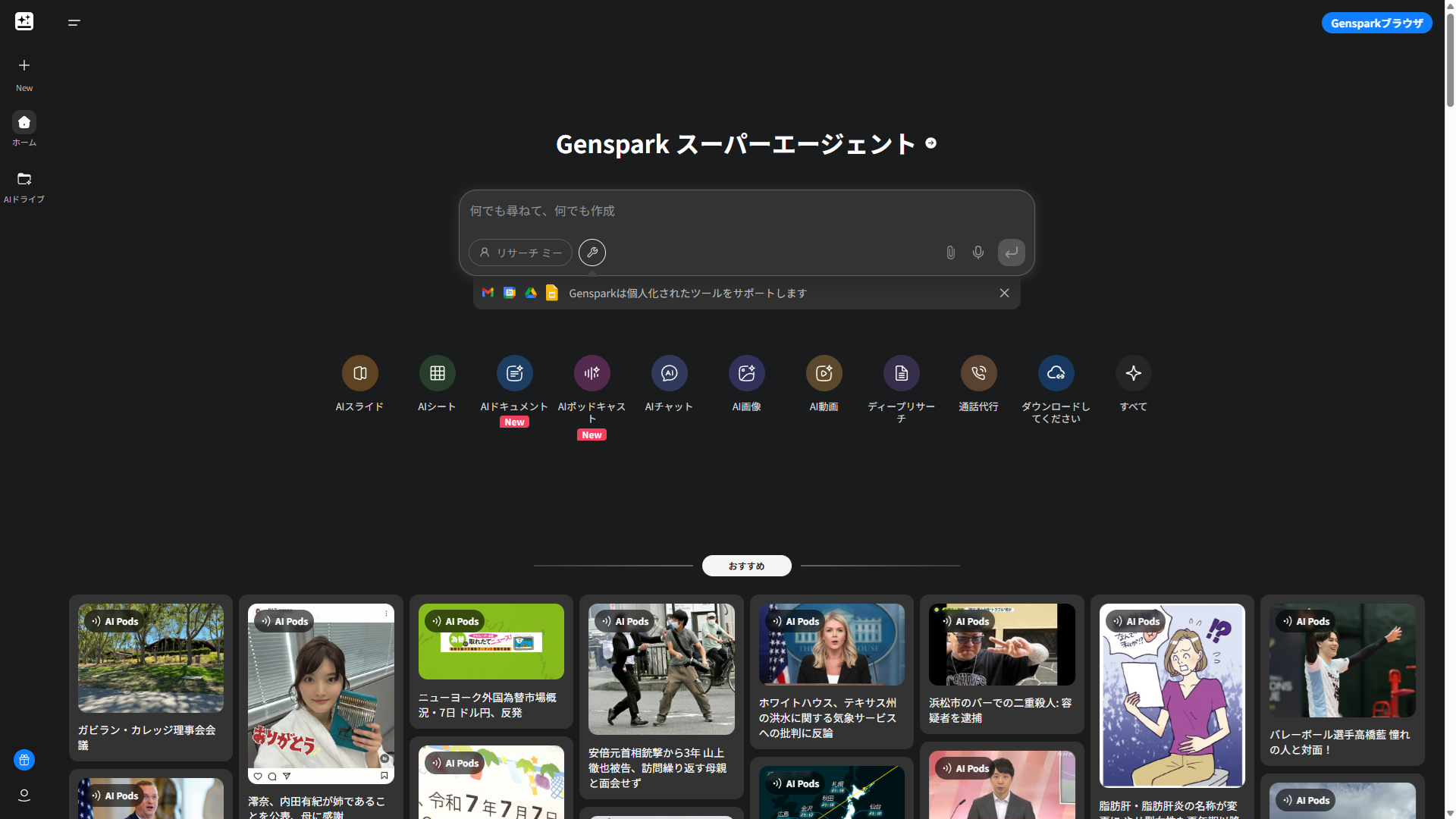
(1) Launching Genspark

First, access the Genspark website ([Add Genspark URL here]). The initial screen is simple, intuitive, and easy to navigate.

https://www.genspark.ai

(2) Selecting AI Slides and Inputting the Prompt

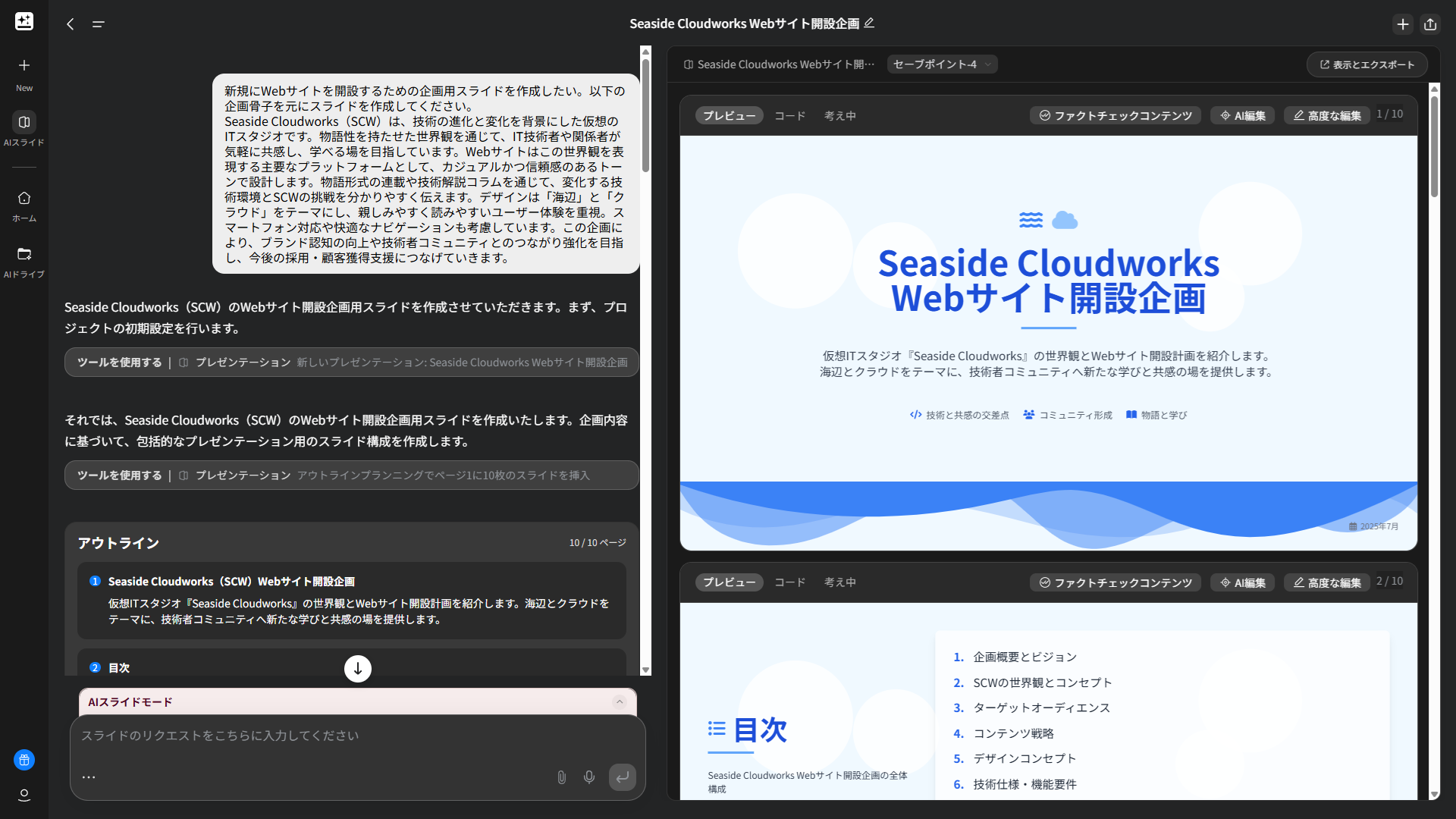
From the initial screen, select “AI Slides” and input the following prompt:

Summary of the project posted this time(in Japanese)

Seaside Cloudworks(SCW)は、技術の進化と変化を背景にした仮想のITスタジオです。物語性を持たせた世界観を通じて、IT技術者や関係者が気軽に共感し、学べる場を目指しています。Webサイトはこの世界観を表現する主要なプラットフォームとして、カジュアルかつ信頼感のあるトーンで設計します。物語形式の連載や技術解説コラムを通じて、変化する技術環境とSCWの挑戦を分かりやすく伝えます。デザインは「海辺」と「クラウド」をテーマにし、親しみやすく読みやすいユーザー体験を重視。スマートフォン対応や快適なナビゲーションも考慮しています。この企画により、ブランド認知の向上や技術者コミュニティとのつながり強化を目指し、今後の採用・顧客獲得支援につなげていきます。

Summary of the project posted this time(translated)

Seaside Cloudworks (SCW) is a virtual IT studio that reflects the evolution and changes in technology. Through a narrative-driven worldview, it aims to create a casual and engaging space where IT professionals and stakeholders can connect and learn. The website serves as the primary platform to express this worldview, designed with a casual yet trustworthy tone. Through serialized stories and technical explanation columns, it clearly communicates the evolving technological landscape and SCW’s challenges. The design is themed around “seaside” and “cloud,” prioritizing a user-friendly and easy-to-read experience. It also considers smartphone compatibility and comfortable navigation. This initiative aims to enhance brand awareness, strengthen connections with the technical community, and support future recruitment and customer acquisition efforts.

After entering the prompt, click the “Start” button to begin AI slide generation.

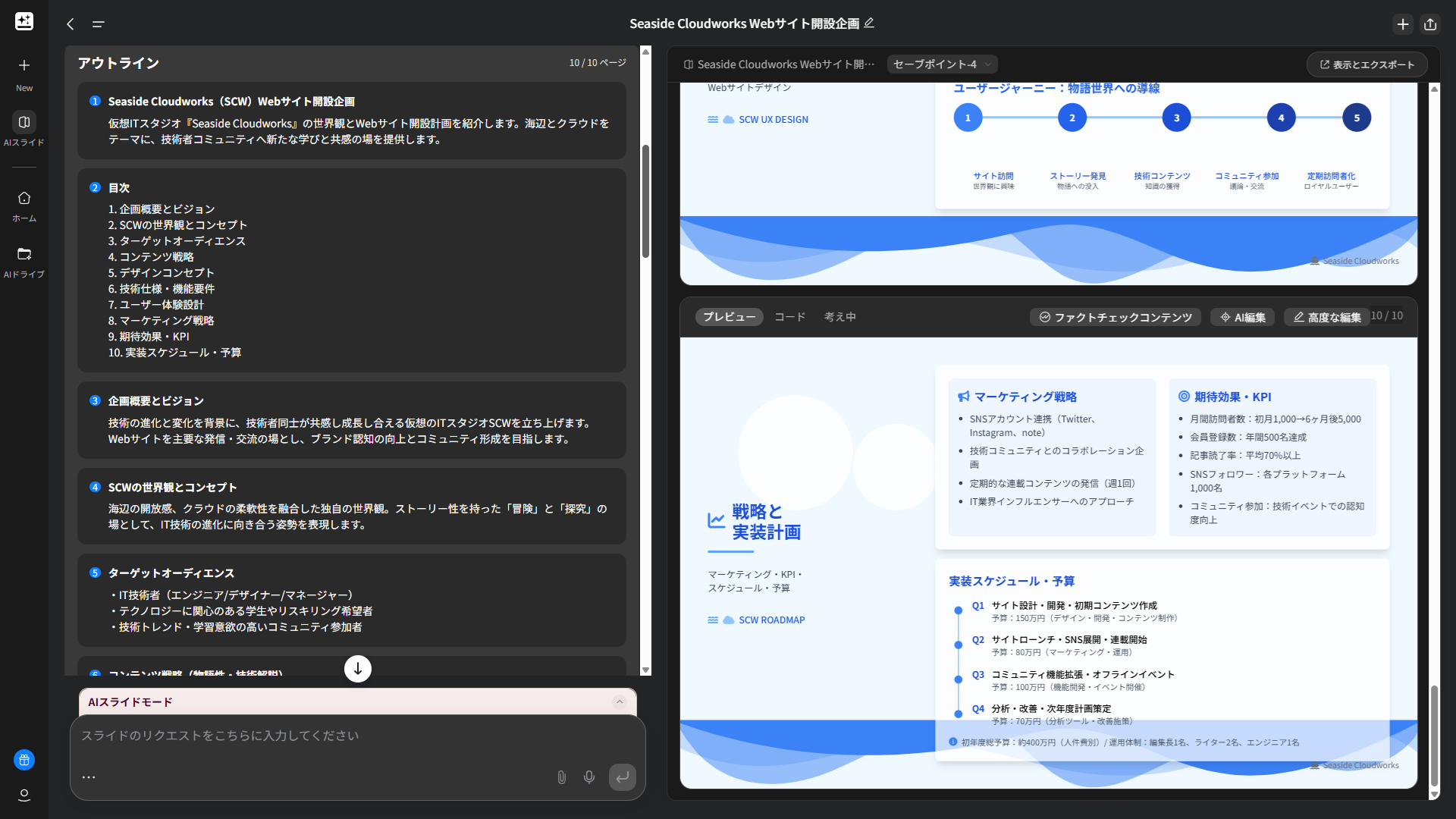
(3) Completion! Preview and Download Features

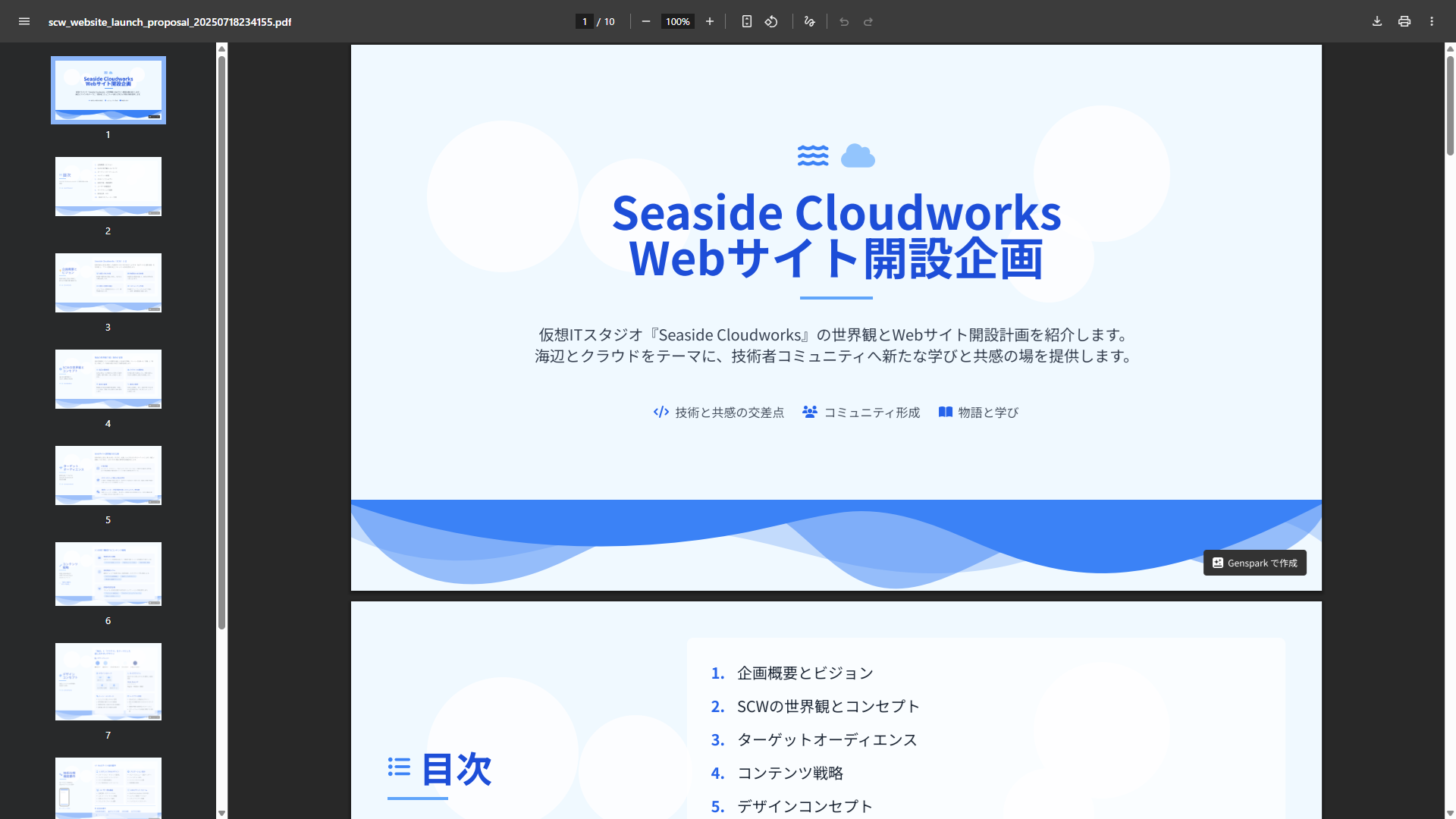
The slides were completed in just a few minutes. After completion, you can immediately preview the content. Although it’s a Beta version, PDF and PowerPoint download functions are also available. This allows you to share the created slides offline or edit them with other tools.

3.My Impressions and Comparison with Gamma

After actually using Genspark, I had a few observations.

Impressions of Genspark

Watching the slides being generated sequentially was exciting, and there was a sense of anticipation as the AI brought my ideas to life. In this example, content from the table of contents onwards was generated in parallel, which really made me feel Genspark’s power. The Japanese was also very natural, and I could read it without any discomfort.

The ability to complete slides in minutes by simply inputting a prompt is impressive. I felt it’s an extremely powerful tool for quickly giving shape to ideas in the early stages of a project.

Since the AI automatically selects the optimal layout and images, even those without design knowledge can create professional-looking slides. Another notable point is how accurately it interprets the input prompt and generates logically structured slides. For a website proposal like this one, all necessary elements were covered, and I felt it was perfectly sufficient as a basic framework. Any discrepancies with actual budgets or personnel configurations could be revised later.

Comparison with Gamma

I also tried Gamma with a similar theme. Gamma is also an excellent AI slide creation tool, but it has different strengths compared to Genspark.

Genspark outputs slides in a familiar PowerPoint-like size, and although it’s a Beta version, it can be downloaded in PDF and PowerPoint formats. On the other hand, Gamma’s size changes depending on the amount of content, making it suitable for viewing online like a landing page. If online presentation is key, Gamma might be more advantageous, but if you prioritize integration with existing presentation tools or offline use, Genspark has the edge.

For a “website proposal” where the purpose and content structure are relatively clear, Genspark’s ease of use and speed truly stood out. In Gamma’s case, users can freely edit and refine the generated slides, offering the advantage of being able to make more detailed customizations and refinements rather than just a “one-off” creation.

4.Conclusion

Genspark, by leveraging AI, has revolutionized slide creation, a process that used to be time-consuming and cumbersome. I particularly recommend it to:

  • Those who want to quickly create slides in the initial stages of a project.
  • Those who lack confidence in their design skills but want to create professional-looking materials.
  • Those who frequently create presentation materials in their daily work.

Of course, AI-generated slides aren’t 100% perfect. However, by making additions and corrections, you can complete high-quality slides far more efficiently than starting from scratch.

Do give Genspark a try and experience its amazing capabilities. Your proposal creation process is sure to become smoother and more creative!

Posted in AI | Tagged , , | Leave a comment